4.5.6.4–4.5.6.6 - Bitmapped and vector graphics
Learn how images are represented as pixels or geometric objects, calculate bitmap storage, and choose a representation that fits the image and its intended use.
Pixels, resolution and colour depth
A bitmap stores an image as a rectangular grid of pixels, with a bit pattern representing the colour of each pixel.
A pixel is one picture element in that grid. The file's layout determines the order of the pixel values, commonly row by row. A monochrome format might use one bit per pixel, with 0 for white and 1 for black. A colour format needs more bits to distinguish more colours. Colour depth is the number of bits stored for each pixel; bits allow up to different colour codes. At four bits per pixel there are 16 possible codes, whereas eight bits allow 256. A palette may map those codes to colours; in other formats bits specify colour components directly.
The size in pixels is width in pixels multiplied by height in pixels. An image 600 pixels wide and 400 pixels high contains 240,000 pixels, regardless of its print size. Resolution can mean a pixel density, expressed in dots per inch (dpi) where each dot is a pixel in this model. At 200 dpi those 600 horizontal pixels span 3 inches. At 100 dpi the same pixels span 6 inches: there are fewer pixels per inch and each is physically larger. Changing only the density metadata does not create extra pixel detail or change the number of stored pixel values.
The word “resolution” is also sometimes used for image dimensions such as 600 × 400. Check which meaning a question uses. Density, dimensions and colour depth are distinct: adding more pixels can capture finer spatial detail, while adding bits per pixel can represent finer colour differences. Neither automatically fixes the other.
Bitmap storage and metadata
The uncompressed pixel payload depends on the number of pixels and the bits used for each one.
Ignoring metadata and padding,
Divide bits by 8 to obtain bytes.
For a 320 × 200 bitmap with eight-bit colour depth, the pixel count is . Storage is bits, or bytes. Using bytes, this is 62.5 KiB. Bytes and bits differ by a factor of eight; kB and KiB also differ, so follow the units requested.
Metadata describes the image or its interpretation. Typical examples include width, height and colour depth, and a file may also record density or a colour palette. The decoder needs dimensions to arrange the stored values into the correct rows, and colour depth to know how many bits to read for each pixel. Metadata occupies space in addition to the pixel payload. If this example has 512 bytes of metadata, the total is 64,512 bytes. The simple formula does not predict the exact size of a compressed file, or additional row padding; include these only when the format/question supplies them.
At fixed colour depth, doubling both width and height multiplies pixel storage by four. At fixed dimensions, doubling the bits per pixel doubles storage. Higher quality representations therefore require more memory and transmission time unless compression offsets the increase.
Vector objects and primitive construction
A vector graphic stores a list of objects and their properties so that software can construct the image.
Primitives are basic geometric objects such as lines, rectangles, circles and curves. Typical properties include position, dimensions, fill colour, outline colour and line thickness. A line can be described by its two endpoints; a circle by its centre and radius. Software renders these object descriptions into pixels for a particular screen or print output. The stored vector description is therefore different from a stored bitmap grid.
Build the following simple badge in your notebook, using a coordinate canvas with origin at the bottom left, x from 0 to 10 and y from 0 to 6. Plot the objects in listed order so later objects appear over earlier ones.
| Order | Primitive | Geometry | Appearance |
|---|---|---|---|
| 1 | Rectangle | Lower-left (1,1); width 8; height 4 | Pale blue fill; grey outline |
| 2 | Circle | Centre (3,3); radius 1 | Pale sage fill; grey outline |
| 3 | Line | From (5,2) to (8,4) | Grey; thickness 2 canvas units × 0.01 |
Start with the rectangle: it extends to x = 9 and y = 5. The circle extends from x = 2 to 4 and y = 2 to 4. Finish with the line joining its endpoints. This is a graphic created from a short primitive list. Compare your construction with the exact coordinate plot below; notebook drawing is a learning activity, not a submitted drawing task.
[DIAGRAM: asset_slug: vector_badge; description: The worked rectangle, circle and line constructed on the stated coordinate canvas]
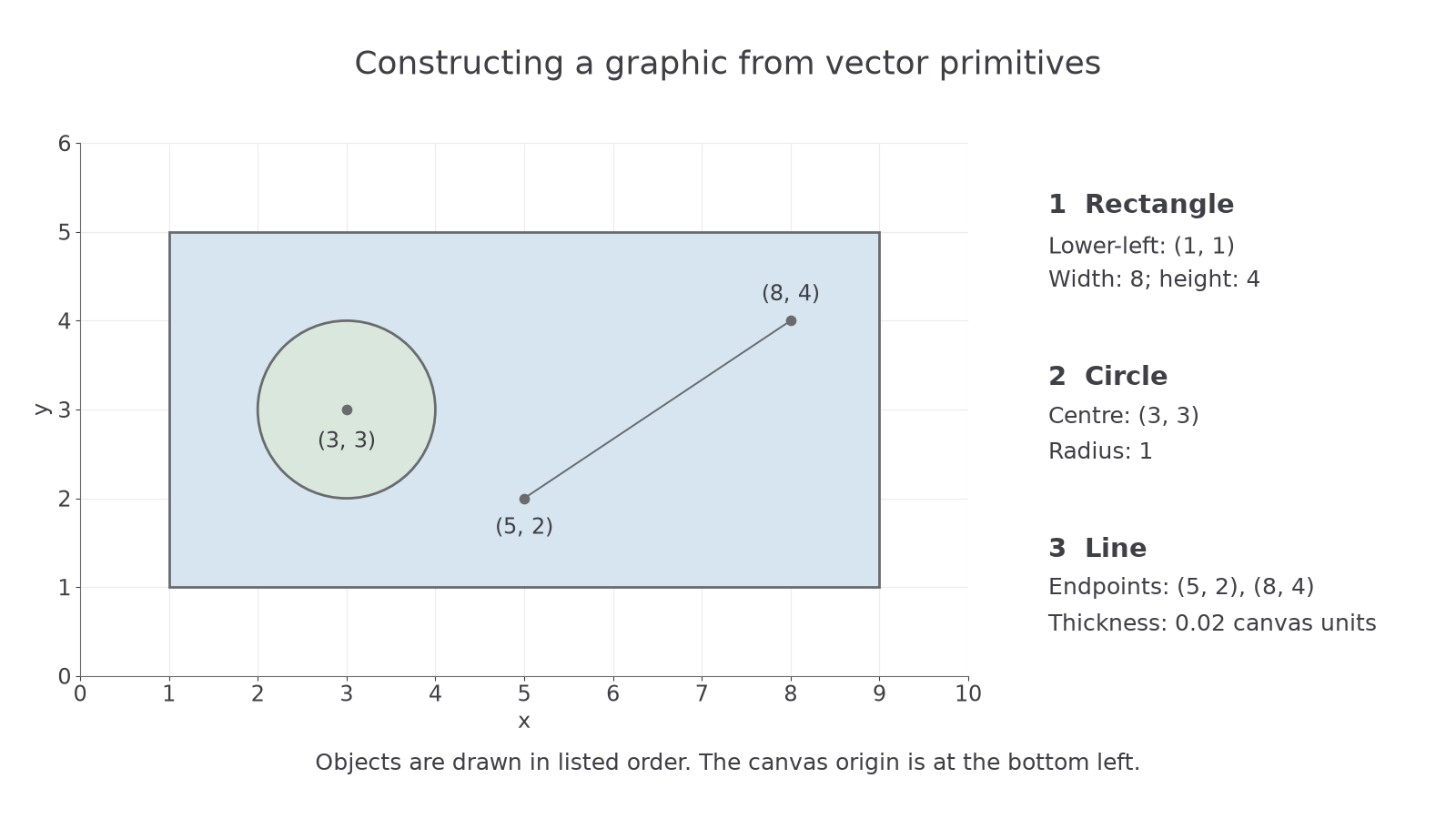
To enlarge every object by a factor of two about the origin, double all coordinates and lengths: the circle's centre becomes (6,6), its radius becomes 2, and the line's endpoints become (10,4) and (16,8). Choose how to scale outline thickness according to the intended design. Moving or recolouring one object changes its properties directly, without manually editing every pixel in its area. Object count and complexity influence vector file size; a highly detailed vector is not always smaller than every bitmap.
Choosing bitmap or vector representation
The best representation depends on the kind of detail in the image and how it will be edited or scaled.
| Consideration | Bitmap | Vector |
|---|---|---|
| Stored description | Colour values for a grid of pixels | Objects and their geometric/appearance properties |
| Enlarging substantially | Existing pixels become visible or interpolated; original detail is limited by the grid | Objects are recalculated at the new size and rendered at the output resolution |
| Editing | Change individual pixels or regions | Change whole objects and their properties |
| Detailed photographs | Naturally represent irregular textures and colour variations | Describing every photographic detail as objects can be very complex |
| Logos, maps and diagrams | Work at a chosen pixel size, but repeated resizing may expose limitations | Simple shapes/text can be resized and edited effectively |
A photograph is well suited to a bitmap because it contains many irregular colour changes rather than a few simple shapes. Its disadvantages include potentially large pixel storage and loss of apparent sharpness when enlarged beyond its captured detail. A logo used on both a small icon and a large sign is well suited to vector objects, which can be rerendered at each size. Vector disadvantages include less natural representation of photographic texture and the need for rendering software compatible with the object format.
“Vectors never use pixels” is misleading: a screen displays their rendered result as pixels. The advantage concerns the stored scalable description, not an infinitely detailed physical screen. Similarly, “bitmap always larger” is too absolute; dimensions, colour depth, compression, object complexity and metadata all affect file size.