2.2.2 - Bitmap images
Zoom far enough into a bitmap and the smooth picture becomes a grid of coded squares. In this lesson, you will turn binary patterns into pixels, reason about resolution and colour depth, and explain how those choices affect detail and raw image size.
Pixels and bitmap dimensions
A computer cannot store a picture as light on a page or screen. In a bitmap, it divides the picture into a rectangular grid and stores a binary value for the colour of every position in that grid.
Pixel
A pixel, short for picture element, is the smallest individual element in a bitmap image. Each pixel has one colour value.
The dimensions of a bitmap are written in the order:
width x height in pixels
An image described as 10 x 6 pixels has 10 pixel positions across each row and 6 rows. Its total number of pixels is:
10 pixels per row x 6 rows = 60 pixels
The first number is not the total number of pixels, and the dimensions do not yet tell us the physical size of the image on paper or on a screen.
Pixel dimensions describe the grid. Multiply width by height to find how many individual pixel values the bitmap contains.
From binary codes to a bitmap
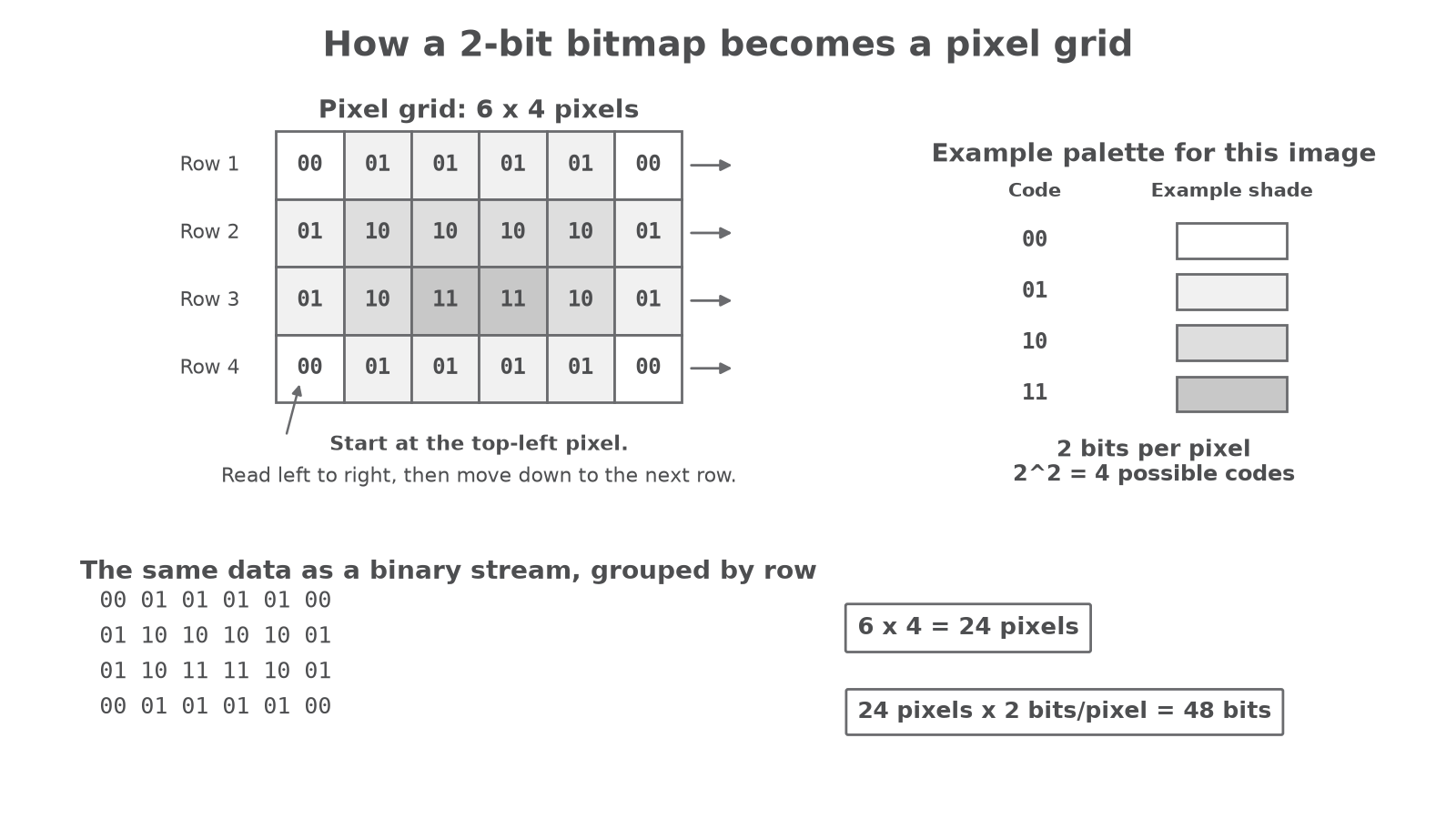
Every pixel must receive one fixed-width binary code. In a 2-bit example, each pixel receives exactly two bits: 00, 01, 10 or 11. An agreed mapping connects each code to a colour; the bits do not have a universal colour meaning on their own.
Pearson's grid convention uses a precise order:
- Start with the pixel in the top-left corner.
- Move from left to right across the first row.
- Return to the left of the next row and repeat.
- Finish at the bottom-right pixel.
[DIAGRAM: asset_name: 2-bit bitmap scan order; asset_slug: 2_2_2_bitmap_images__diagram_01; recommended_method: matplotlib; description: A monochrome 16:9 teaching diagram showing a 6 by 4 pixel bitmap in which every pixel contains one of the fixed-width codes 00, 01, 10 or 11, with an example four-shade palette, row labels and arrows establishing top-left-to-right then downward scan order, the same codes grouped into four binary rows, and verified calculations 6 x 4 = 24 pixels and 24 x 2 bits per pixel = 48 bits.]
Worked example: decode a 1-bit bitmap
A 4 x 3 bitmap uses one bit per pixel and this mapping:
0means white1means dark
The binary data is already separated into rows:
0 1 1 0
1 0 0 1
0 1 1 0
The width is 4 pixels, so each row contains four 1-bit codes. Reading from the top-left gives:
| Row | Binary codes | Pixel colours from left to right |
|---|---|---|
| 1 | 0 1 1 0 | white, dark, dark, white |
| 2 | 1 0 0 1 | dark, white, white, dark |
| 3 | 0 1 1 0 | white, dark, dark, white |
Encoding reverses the process. With the same mapping, a row of white, dark, white, dark becomes 0 1 0 1.
Two details prevent common errors: keep every code the same width, and start a new row only after the stated number of pixels. For a 2-bit image that is 5 pixels wide, one complete row therefore needs 5 x 2 = 10 bits.
Resolution and image detail
The word resolution appears in two closely related ways. Naming the quantity and its unit makes the meaning clear.
| Quantity | What it tells you | Example |
|---|---|---|
| Pixel dimensions | Number of pixels across and down | 1920 x 1080 pixels |
| Pixel density | Number of pixels packed into each inch of output | 150 ppi |
| Physical dimensions | Width and height of the displayed or printed image | 4 x 2 inches |
ppi means pixels per inch. For a print or display with a stated ppi:
physical width in inches  = width in pixels / ppi
physical height in inches = height in pixels / ppi
Worked example: the same pixels at two densities
A bitmap is 600 x 300 pixels.
At 150 ppi:
width  = 600 pixels / 150 pixels per inch = 4 inches
height = 300 pixels / 150 pixels per inch = 2 inches
At 300 ppi, the same 600 x 300 pixels occupy only 2 x 1 inches. Raising the ppi did not create any new pixels; it packed the existing pixels more tightly.
Comparison conditions matter:
- If two images fill the same physical display area, the one with more pixels can represent finer detail because more pixel values fit into that area.
- If one image keeps the same pixel dimensions but is stretched over a larger area, each pixel occupies more space. Pixel boundaries may become visible, so the image looks pixelated.
- Stretching does not recover detail that was absent from the original bitmap.
For example, 1920 x 1080 has twice as many pixels across and twice as many down as 960 x 540: four times as many pixels altogether. At the same displayed size, it can preserve finer detail.
Colour depth and available colours
Colour depth
Colour depth is the number of bits used to represent the colour of one pixel.
Each bit can be 0 or 1, so n bits provide 2^n different fixed-width patterns. Therefore:
maximum number of available colours = 2^(colour depth)
| Colour depth | Possible binary codes | Maximum available colours |
|---|---|---|
| 1 bit | 0 to 1 | 2^1 = 2 |
| 2 bits | 00 to 11 | 2^2 = 4 |
| 4 bits | 0000 to 1111 | 2^4 = 16 |
| 8 bits | 00000000 to 11111111 | 2^8 = 256 |
Worked example: a 3-bit palette
Three bits give the patterns 000, 001, 010, 011, 100, 101, 110 and 111. That is:
2^3 = 8 possible colours
Eight is the maximum number of colours the codes can distinguish. A particular image might use only five of them; colour depth measures the bits allocated per pixel, not the number of different colours that happen to appear.
Increasing colour depth gives more possible tones or colours. This can make colour changes smoother and reduce visible bands in a gradient. The trade-off is that every pixel needs more bits. Decreasing colour depth uses fewer bits per pixel but may replace similar colours with the same code and make banding more noticeable.
Pixel data size and metadata
Every pixel needs one colour code. This gives a direct relationship for the raw pixel data:
raw pixel-data size (bits)
    = width (pixels) x height (pixels) x colour depth (bits per pixel)
First multiply the two dimension counts to obtain the number of pixels. Multiplying that pixel count by bits per pixel leaves bits.
Worked example: calculate the raw pixel data
A bitmap is 20 x 12 pixels with a colour depth of 4 bits.
number of pixels = 20 pixels per row x 12 rows
                 = 240 pixels

raw pixel data   = 240 pixels x 4 bits/pixel
                 = 960 bits
Doubling the width while keeping height and colour depth fixed doubles the number of pixels and therefore doubles the raw pixel-data size. Increasing colour depth also increases the raw size because each pixel receives more bits.
Changing only the ppi does not change this calculation: the bitmap still contains the same number of pixel codes. It changes how large those pixels appear when displayed or printed.
Metadata
Metadata is data about the image's properties, such as its dimensions or colour information, stored alongside the pixel data.
Metadata and other required file information occupy storage too. For that reason, width x height x colour depth gives the size of the raw pixel codes in the simplified bitmap model, not necessarily the complete size of a real stored image file.
More pixels or more bits per pixel increase raw bitmap data. A ppi change alone changes physical output size, not the number of stored pixel codes.